Capturing Readings on Mobile
In this section, you'll learn how operators use Cyzag Blueprint on mobile devices to complete rounds, capture readings, and document equipment conditions at Blueprint Paper Mill.
The Mobile Operator Experience
Operators carry iOS or Android devices (phones or tablets) throughout their rounds. The interface is optimized for:
- Gloved hands: Large touch targets, simplified inputs
- Noisy environments: Visual feedback, minimal text entry
- Bright sunlight or dim lighting: High-contrast displays, adjustable brightness
- Offline operation: All data captured locally, synced when connectivity returns
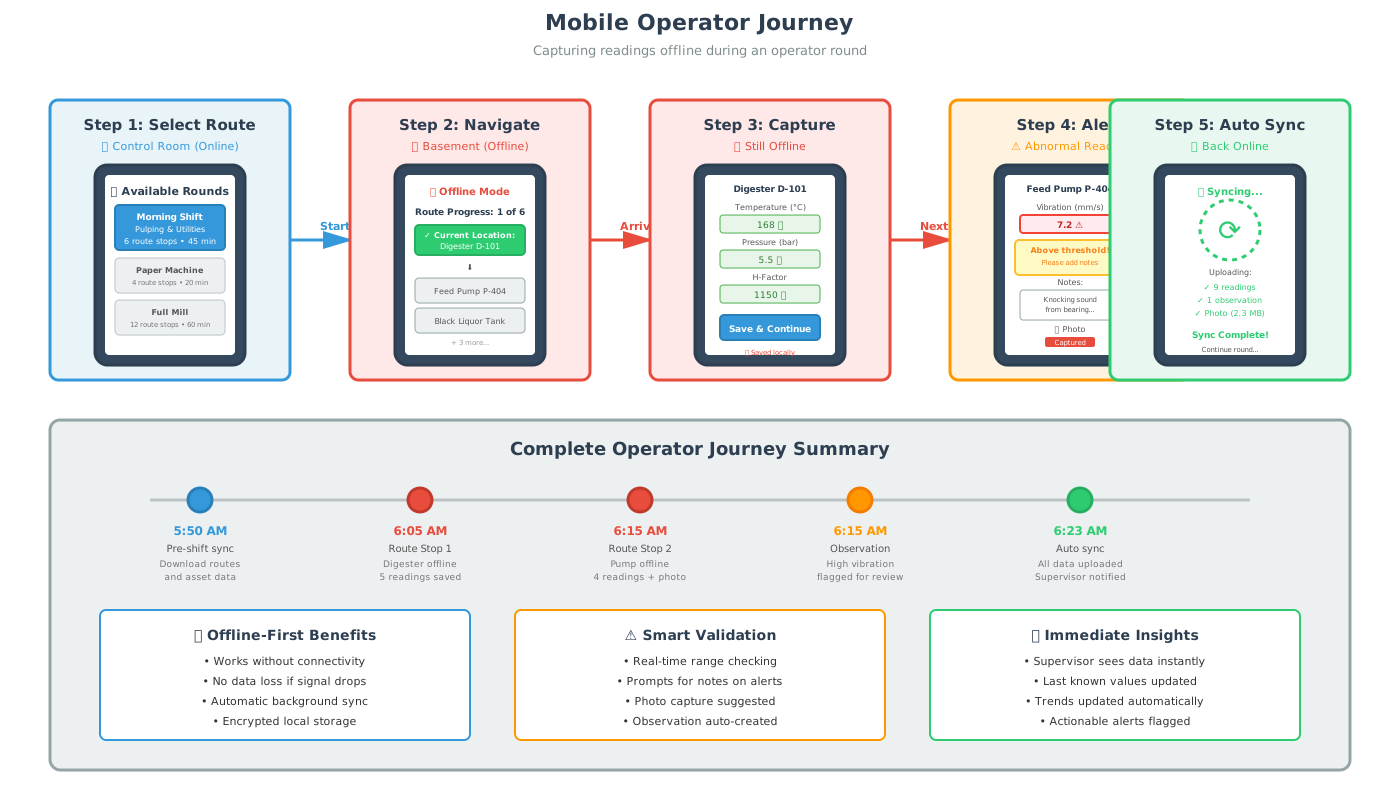
Starting a Round
Step 1: Select Route
When an operator opens Cyzag Blueprint, they see available routes:
📋 Available Rounds

[Morning Shift - Pulping & Utilities]
Estimated duration: 45 min
Last completed: Yesterday, 6:15 AM

[Paper Machine Line Inspection]
Estimated duration: 20 min
Last completed: Today, 8:00 AM

[End of Shift - Full Mill Walkthrough]
Estimated duration: 60 min
Last completed: Yesterday, 9:45 PM
The operator taps "Morning Shift - Pulping & Utilities" to begin.
Step 2: Review Route Stops
Before starting, the operator sees the route stop list:
Morning Shift - Pulping & Utilities
6 route stops

1. Digester D-101 (Unit A)
2. Feed Pump P-404 (Unit A)
3. Black Liquor Tank BL-02 (Unit A)
4. Steam Boiler B-01 (Unit D)
5. Air Compressor AC-12 (Unit D)
6. Cooling Tower CT-03 (Unit D)

[Start Round]
Tapping "Start Round" begins the timer and opens the first route stop.
Capturing Readings at Route Stops
Example: Route Stop 1 – Digester D-101
The operator walks to the basement where Digester D-101 is located. Cellular signal is poor here, but the app works normally because it's offline-first.
Screen Layout
────────────────────────────────────
Route Stop 1 of 6
DIGESTER D-101
Unit A – Pulping
────────────────────────────────────

📶 Offline (data will sync later)

Cooking Temperature (°C)
Normal range: 165–172 °C
┌─────────────────────────────────┐
│ 168                             │
└─────────────────────────────────┘

Digester Pressure (bar)
Normal range: 5.2–5.8 bar
┌─────────────────────────────────┐
│ 5.5                             │
└─────────────────────────────────┘

H-Factor
┌─────────────────────────────────┐
│ 1150                            │
└─────────────────────────────────┘

White Liquor Flow (L/min)
┌─────────────────────────────────┐
│ 42                              │
└─────────────────────────────────┘

Chip Level (%)
┌─────────────────────────────────┐
│ 78                              │
└─────────────────────────────────┘

Unusual noise or odor?
☐ Yes  ☑ No

📷 Add Photo (optional)

Notes
┌─────────────────────────────────┐
│                                 │
└─────────────────────────────────┘

[Save & Continue]
────────────────────────────────────
Input Methods
Numeric readings: Operators tap the input field and use the numeric keyboard. The app shows the normal range as a visual cue (green background for in-range, yellow/red for out of range).
Checkboxes: Single tap to toggle yes/no.
Photos: Tap camera icon to capture photo using device camera. Photos are stored locally and synced later.
Notes: Optional free-text field using standard keyboard.
Reading Validation
As the operator enters "5.5" for Digester Pressure:
- Field background turns green (value is within 5.2–5.8 bar normal range)
- No alerts or warnings
If the operator entered "6.2" (above normal):
- Field background turns yellow ⚠️
- Warning message: "Above normal range (5.2–5.8 bar)"
- Operator is prompted to add notes explaining the abnormal reading
Saving and Continuing
When the operator taps "Save & Continue", the app:
- Validates all required fields are completed
- Stores readings locally with timestamp and operator ID
- Moves to the next route stop (Feed Pump P-404)
Route Stop 1 is now marked complete, even though the device is offline.
Moving Through the Round
The operator continues through all 6 route stops, capturing readings at each location. The app provides clear progress feedback:
────────────────────────────────────
Progress: 3 of 6 route stops complete
────────────────────────────────────
✅ Digester D-101
✅ Feed Pump P-404
✅ Black Liquor Tank BL-02
→  Steam Boiler B-01 (current)
   Air Compressor AC-12
   Cooling Tower CT-03
────────────────────────────────────
Handling Abnormal Conditions
Example: High Vibration on Feed Pump P-404
At Route Stop 2 (Feed Pump P-404), the operator records:
- Discharge Pressure: 12.5 bar ✅ (normal)
- Motor Amperage: 48 A ✅ (normal)
- Bearing Vibration: 7.2 mm/s ⚠️ (above 6.0 mm/s threshold)
- Seal Temperature: 42 °C ✅ (normal)
When the vibration value is entered, the app:
- Highlights the field in red 🔴
- Shows alert: "Above normal threshold (>6.0 mm/s)"
- Prompts operator to add notes: "Please describe the condition"
- Suggests taking a photo of the pump bearing
The operator adds notes:
Bearing vibration higher than normal.
Audible knocking sound from drive end bearing.
Pump still operating but needs attention.
And captures a photo of the pump.
The app automatically creates an observation linked to this route stop, flagged for supervisor review.
Visual Indicators for Abnormal Readings
| Value vs. Normal Range | Color | Icon | Action Required |
|---|---|---|---|
| Within normal range | Green 🟢 | ✅ | None |
| Slightly outside range | Yellow 🟡 | ⚠️ | Add notes (optional) |
| Significantly outside range | Red 🔴 | 🚨 | Add notes (required) + photo recommended |
Completing the Round
After visiting all 6 route stops, the operator sees the completion screen:
────────────────────────────────────
Round Complete! ✅
────────────────────────────────────

Morning Shift - Pulping & Utilities
Started: 6:00 AM
Completed: 6:42 AM
Duration: 42 minutes

Route stops completed: 6 of 6

⚠️ 1 observation flagged for review
   Feed Pump P-404: High bearing vibration

Summary notes for shift handover
┌─────────────────────────────────┐
│ All equipment in Unit A and     │
│ Unit D operating normally except │
│ P-404 bearing vibration. Recommend│
│ maintenance check on day shift.  │
└─────────────────────────────────┘

Sign to complete
┌─────────────────────────────────┐
│ John Smith (Operator)           │
└─────────────────────────────────┘

[Complete Round]
────────────────────────────────────
The operator adds handover notes and signs digitally. Tapping "Complete Round" finalizes the round.
Background Sync
When the operator returns to the control room (good connectivity), the app automatically syncs:
📶 Connected - Syncing data...

✅ Round completed: Morning Shift - Pulping & Utilities
✅ 30 readings uploaded
✅ 1 photo uploaded
✅ 1 observation created

All data synced successfully.
The supervisor now sees the completed round, all readings, the photo of the pump, and the flagged observation—even though most data was captured offline.
Offline vs. Online Behavior
Offline (poor connectivity)
- All functionality available
- Data stored locally in encrypted storage
- Photos stored on device
- Visual indicator: "📶 Offline (data will sync later)"
- No sync delays or failed requests
Online (good connectivity)
- Identical functionality
- Data syncs in real-time as readings are captured
- Photos upload immediately
- Visual indicator: "📶 Connected"
- Instant visibility for supervisors
Key point: Operators don't need to think about connectivity. The app works the same regardless of network status.
Mobile Interface Best Practices
Cyzag Blueprint's mobile interface is optimized for industrial environments:
1. Large Touch Targets
- Buttons and input fields are at least 48×48 pixels
- Easy to tap with gloved hands or in bumpy environments
2. Minimal Text Entry
- Numeric keyboards for readings
- Dropdowns for categorical values (OK/Low/Check Required)
- Yes/no checkboxes for binary checks
- Voice-to-text for notes (if device supports)
3. High Contrast Display
- Dark text on light backgrounds
- Color coding (green/yellow/red) for quick assessment
- Works in bright sunlight and dim lighting
4. Progressive Disclosure
- Show one route stop at a time to reduce cognitive load
- Expandable sections for optional fields
- Clear progress indicators
5. Autosave and Recovery
- Readings auto-saved as entered
- If app crashes or device battery dies, data is preserved
- Operator can resume round from last route stop
Verification
After completing your first round on mobile, verify:
- ✅ Readings are captured quickly (15–30 seconds per route stop)
- ✅ Offline operation works seamlessly in basements and remote areas
- ✅ Abnormal readings trigger appropriate alerts and prompts
- ✅ Photos and notes are easy to add when needed
- ✅ Data syncs automatically when connectivity returns
- ✅ Supervisors can see completed rounds and flagged observations
Next Steps
Now that you understand how to capture readings, learn how to handle abnormal conditions and generate work items. Continue to Observations to explore Phase 1's observation workflow and how it sets the foundation for Phase 2 alerts and triage.